---
title: How Do I Format the Table of Contents in Cleardox?
description: How Do I Format the Table of Contents in Cleardox?
---
[Skip to content](https://academy.cleardox.io/how-do-i-format-the-table-of-contents-in-cleardox#main-content)
- [English](https://academy.cleardox.io/how-do-i-format-the-table-of-contents-in-cleardox)
- [Dansk](https://academy.cleardox.io/da/how-do-i-format-the-table-of-contents-in-cleardox)
English
Show submenu for translations
![cleardox logo mørk blå.png\]](https://academy.cleardox.io/hs-fs/hubfs/cleardox%20logo%20m%C3%B8rk%20bl%C3%A5.png?height=40&name=cleardox%20logo%20m%C3%B8rk%20bl%C3%A5.png)
Open main navigation
Close main navigation
- - [English](https://academy.cleardox.io/how-do-i-format-the-table-of-contents-in-cleardox)
- [Dansk](https://academy.cleardox.io/da/how-do-i-format-the-table-of-contents-in-cleardox)
English
Show submenu for translations
- Go to www.cleardox.io
Go to www.cleardox.io
Welcome to our Help Center. How can we help?
- There are no suggestions because the search field is empty.
1. [Cleardox Academy](https://academy.cleardox.io/?hsLang=en)
2. [Legal Binder](https://academy.cleardox.io/legal-binder?hsLang=en)
# How Do I Format the Table of Contents in Cleardox?
## Customize the layout and appearance of your table of contents to match your organization's preferences and create professional-looking legal binders.
### Why Customize the Table of Contents?
The table of contents often needs to follow specific guidelines. Cleardox allows you to tailor both the layout and typography, ensuring the table of contents is clear, consistent, and aligned with your organization's branding or formatting requirements.
You can choose which information to display, adjust the order and alignment of columns, and customize the appearance of headings and text.
### Customize the Layout
The **Layout** tab allows you to control how information is presented in your table of contents.
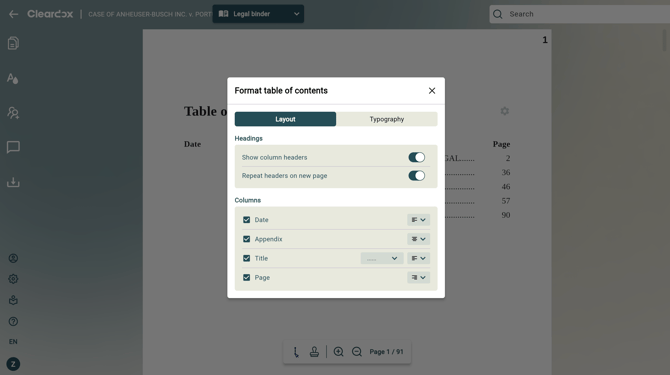
Here, you can:
- Show or hide column headers.
- Repeat column headers on each new page.
- Choose which columns to display.
- Adjust the alignment of each column.
- Select the leader style (for example, dotted leaders) between document titles and page numbers.
Changes are reflected immediately, allowing you to preview the final layout before exporting your document.
### Customize the Typography
The **Typography** tab allows you to change the appearance of the text in your table of contents.
You can customize formatting for:
- Title
- Binder
- Section headings
- Column headers
- Normal text
For each element, you can choose:
- Font family
- Font size
- Bold, italic, or underline
- Text alignment
- Line spacing
This gives you complete control over the visual style of your table of contents.
### When Is This Useful?
Custom formatting is especially useful when you want to:
- Match your organization's branding or style guide.
- Create a consistent appearance across legal binders.
- Improve readability for large document collections.
- Meet client-specific formatting requirements.
By customizing both the layout and typography, you can create professional, easy-to-read tables of contents tailored to your specific needs.
- [General](https://academy.cleardox.io/general?hsLang=en)
- [PDF Tools](https://academy.cleardox.io/pdf-tools?hsLang=en)
- [Support](https://academy.cleardox.io/support?hsLang=en)
- [Legal Binder](https://academy.cleardox.io/legal-binder?hsLang=en)
- [Cleardox Redact](https://academy.cleardox.io/cleardox-redact?hsLang=en)
[](http://Cleardox.io)
www.cleardox.io
Copyright © 2026, Cleardox ApS